
Manage Expiration in Editor
Spot expired or soon-to-expire content right from the editor, so you can swap it out before it ends up in your final video.
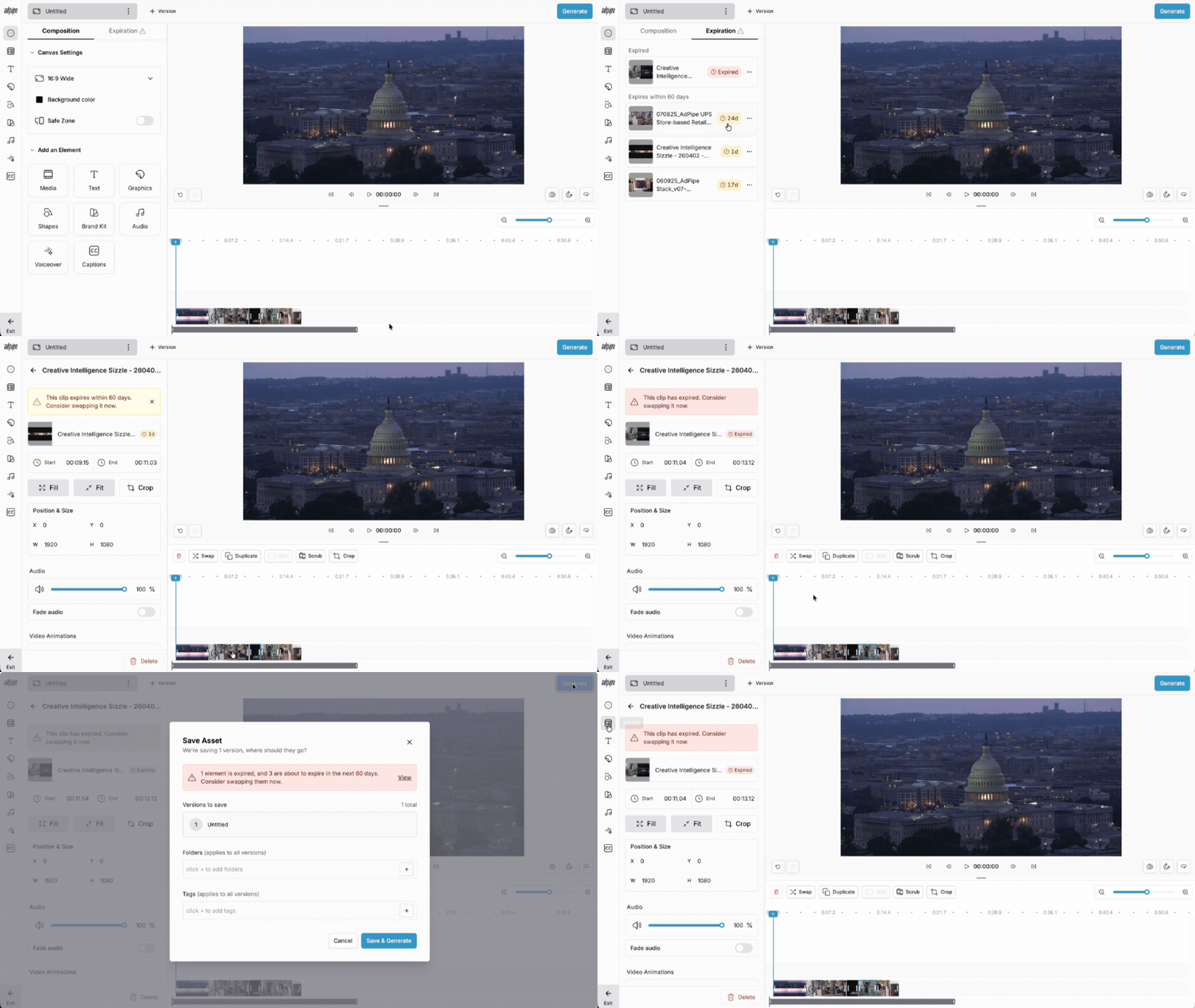
How to Use Manage Expiration in Editor
- Open any asset in the editor.
- Click the Expiration tab next to Composition in the left panel. A warning icon appears here if anything in your project is expiring in 60 days or expired.
- Review the list of expiring media and their dates.
- Swap out any flagged media directly from this tab.
- When you click Generate, AdPipe runs an automatic expiration check first, so you don't ship a video with expired content by accident.
What You Can Do
- Review expiring media in one dedicated tab, without digging into individual asset details
- Get an automatic expiration check before you generate
- See upcoming expiration dates at a glance and swap media in a couple clicks
- Spot expiration status right in your media search results, before you even add something to a project
FAQs
Where do I find the Expiration tab?
It's next to Composition in the editor's left panel. A warning icon shows up there when something in your project needs attention.
Will AdPipe stop me from generating a video with expired media?
AdPipe checks for expiration before you generate and flags any issues, so you can catch and fix them before your final export.
Can I see expiration status before I add media to a project?
Yes. Expiration status shows up directly in your media search results, so you know before you build.
What counts as "expiring soon"?
The Expiration tab surfaces media approaching its expiration date, not just media that's already expired, so you have time to plan a swap.