
Asset Version History
What This Feature Does
Version History & Rollback lets you review, compare, and restore previous versions of any asset with a single click. Browse the full history, see who made changes, and roll back whenever plans change. Your team gets the confidence to experiment without worrying about losing work.
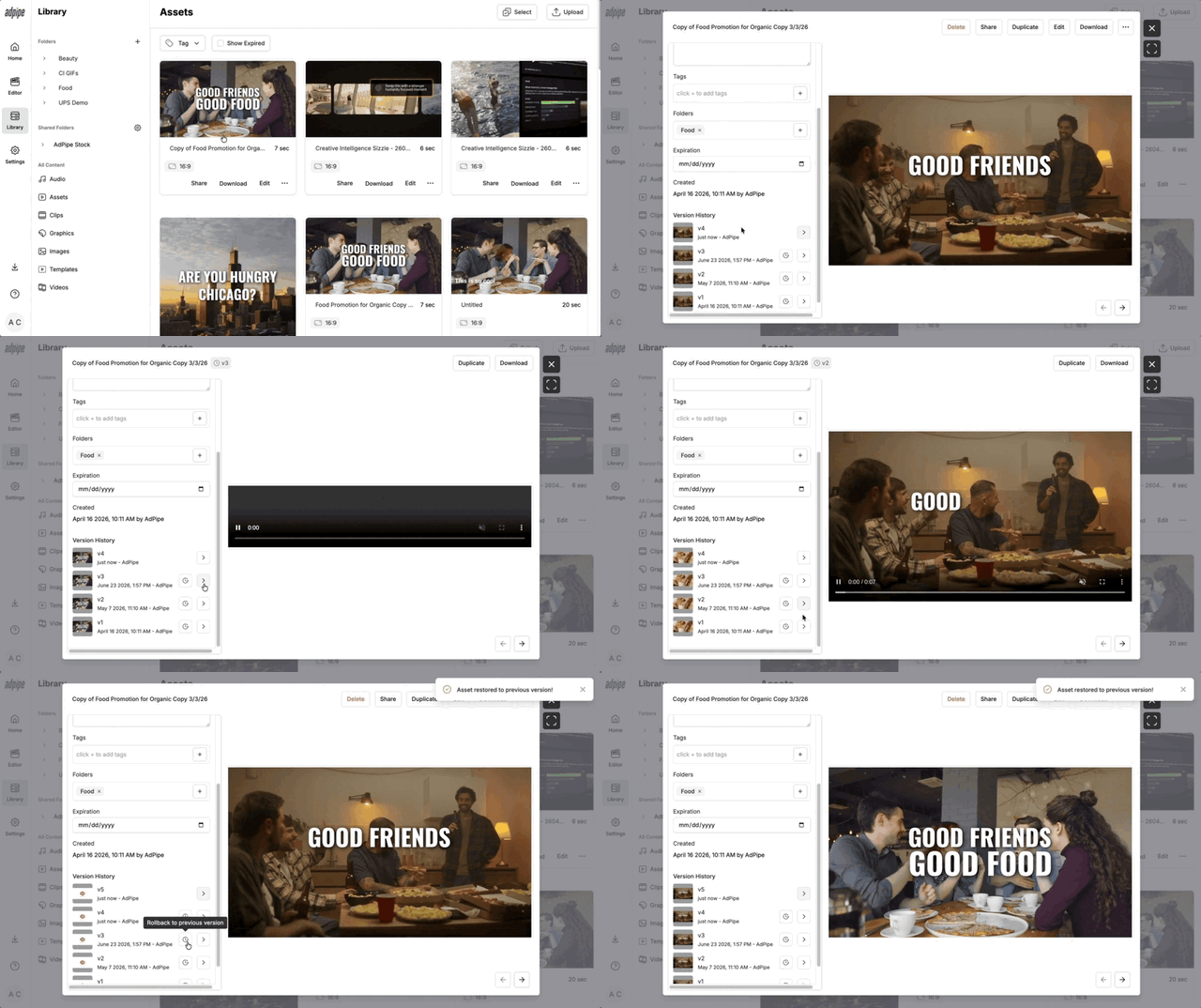
How to Use Version History & Rollback
- Open an asset in Detail View or Quick View.
- Click the arrow next to a version to preview older versions.
- Use the Rollback icon (the clock) to restore a previous version.
What You Can Do
- Recover previous work without duplicating assets by hand
- Compare revisions quickly and track how an asset evolved
- See who made changes for a clear record of every update
- Roll back to the right version the moment plans change
- Experiment freely, knowing your earlier work is always there
FAQs
How many versions can I go back? Browse an asset's full version history and roll back to any version in it.
Can I see what changed before I roll back? Yes. Preview and compare previous versions first, so you restore the right one.
Can I tell who made a change? Yes. Version History shows who made changes, giving your team a clear record of every update.
Do I lose my current version when I roll back? No. Rolling back restores a previous version without erasing your history, so you can always move between versions.