
Scrub
Same clip, different moment. Scrub shifts which part of the source video plays inside a timeline clip, without changing the clip's length or where it sits in your timeline.
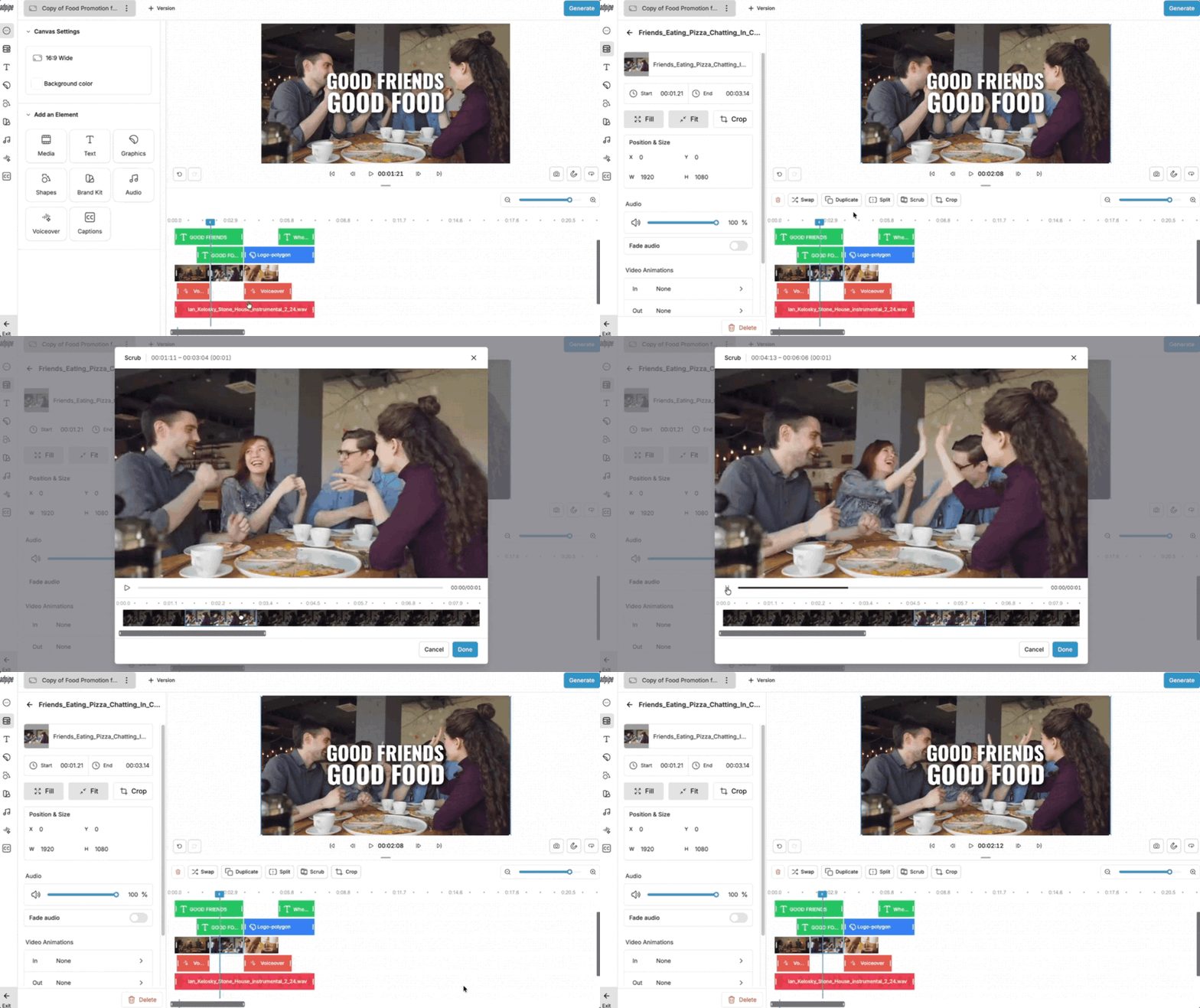
How to Use Scrub
- Select the media element on your timeline
- Click Scrub above the timeline
- Shift to the portion of the source video you want to show
- Click Done to apply
What You Can Do
- Pick the exact moment you want without re-trimming.
- Fine-tune clips after a Smart Bulk Swap to make sure visuals land on the right beat.
- Adjust a glance, a smile, a transition, all without rebuilding your timeline.
- Keep your editing flow tight and your work intact.
FAQs
Will scrubbing change my clip length or timing?
No. Scrub only shifts which part of the source video plays. Your clip stays the same length and in the same place on the timeline.
What's the difference between Scrub and trimming?
Trimming changes how long a clip is. Scrub changes which part of the source plays inside that clip, with no impact on length.
Can I scrub a clip after I've swapped it?
Yes. Scrub is the perfect pairing with Smart Bulk Swap when you want to fine-tune the moment after a quick swap.
Can I undo a scrub?
Yes. Use Undo to step back, or jump back into Scrub and reshift until it lands right.